flowchart LR
    A["`**Step 1**
    Scripts & Projects`"] --> B["`**Step 2**
    Working Directory`"] --> C["`**Step 3**
    Libraries`"] --> D["`**Step 4**
    Import & Export`"]
    style A fill:#1a1a1a,stroke:#1a1a1a,color:#fff
    linkStyle default stroke:#adb5bd,stroke-width:2px
1. Scripts & Projects
Scripts
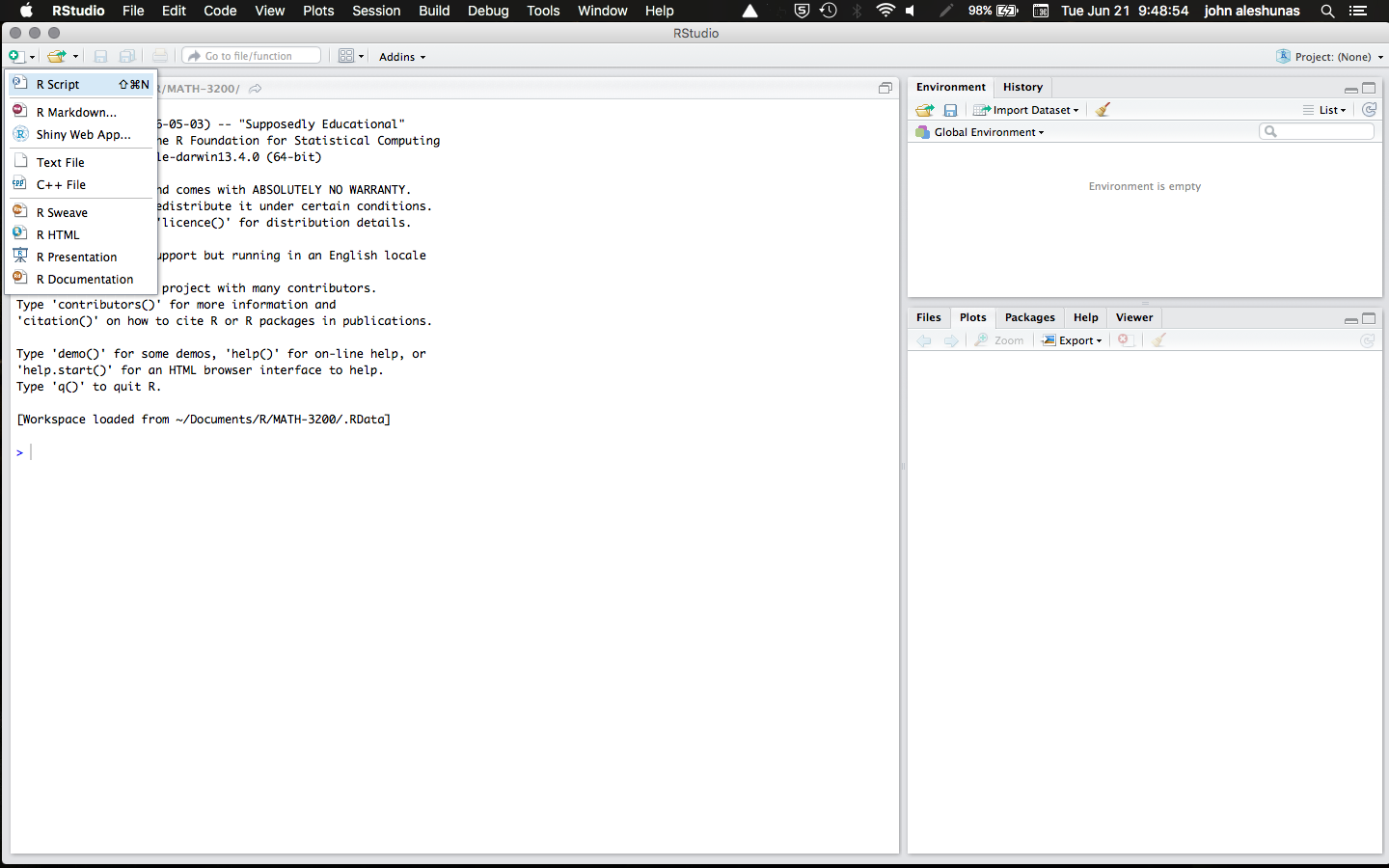
You can type your R code into two places: either in the console (i.e., the bottom left corner of RStudio) or into a script (i.e., the top left corner of RStudio). It is good practice to do everything in a script because you can troubleshoot your code much more easily and reproduce everything you do.
You can open a new script by clicking the dropdown menu File >> New File >> R Script. Alternatively, in RStudio you can click on the icon that looks like a plus on top of a black sheet of paper. It will provide a dropdown menu that will allow you to open a new R script.
R Projects
A lot of set up in R is easy to organize using R projects. However, that is beyond the scope of this tutorial.
Starting with a clean slate
To see if your script is working or just to start fresh, the absolute best practice is to restart RStudio to clear its memory. But you need to make a change to the global options first so it does not automatically load your last session.
To do this, go to Tools >> Global Options and uncheck “Restore .RData into workspace at startup”. This will clear the workspace every time.
A second option, which people use when a quick reset is needed, is the function rm(list=ls()). This clears all objects in R memory, but it does not detach libraries you have loaded, nor does it reset global options. It is always recommended to restart RStudio when you want to work with a truly clean slate. But many times a quick rm(list=ls()) will suffice.